123PPT.com 
PowerPoint templates, PowerPoint backgrounds, 
Photos and Photographs, Sound Effects and Music, 
Fonts and Typography, Presentation Services.
The 123PPT Video Backgrounds Studio™
Create and play full screen full motion video PowerPoint presentations The 123PPT Video Backgrounds Studio™
Create and play full screen full motion video PowerPoint presentations
The 123PPT Music & SoundFX Studio™
PowerPoint has never sounded so good. The 123PPT Music & SoundFX Studio™
Complete control of your presentation music, sound effects and audio.
The 123PPT Presentations Player™
Play and share your video and multimedia PowerPoint presentations with anyone using this free standalone player. The 123PPT Presentations Player™
Play and share your video and multimedia PowerPoint presentations with anyone using this free standalone player.
PowerPoint templates
Insert and play video animated backgrounds in PowerPoint Insert and play video backgrounds in PowerPoint behind your slide text and content
PowerPoint backgrounds PowerPoint backgrounds
Photos images and illustrations for PowerPoint Photos images and illustrations for PowerPoint
Sound effects and background music loops for PowerPoint Music loops and sound effects for PowerPoint
Fonts Fonts
Presentation Services Custom PowerPoint template design and Presentation Services
Your Shopping Cart is currently empty
The 123PPT Presenters Forum
Discuss PowerPoint, presentations, speeches,
and techniques in the forum.
Sign up for our Newsletter to get the latest Presentation Articles, PowerPoint Tutorials, Tips, and Special Product Offers.
Presentation Articles, Advice, and Helpful Commentaries from experts and industry professionals
PowerPoint Tutorials, Tips, Tricks, and Help
Frequently Asked Questions about 123PPT.com and 123PPT.com's Products and Services
Links to Presentation Resources
Fonts A Site Map and overview of 123PPT.com
Contact 123PPT.com
 
Presentation tutorials, lessons, and step-by-step guides to help you make your next presentation even better.

December 15, 2004   Edition Nr: 004

Adding Video Transitions between Clips

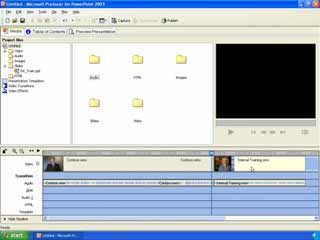
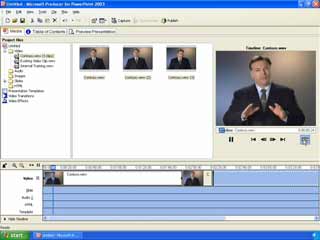
To add a video transition effect between two video clips, you must first make sure that you have your video clips on the timeline.


                      Place your video clips on the timeline

With your video clips on the timeline, click on Video transitions in the left tree pane.


              Selecting Video Transitions in the left tree pane

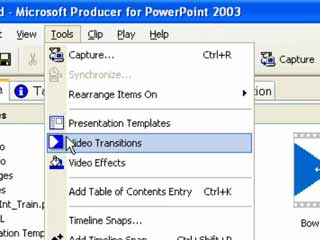
Alternatively, you can also select Video Transitions from the Tools menu.


               Selecting Video Transitions from the main menu

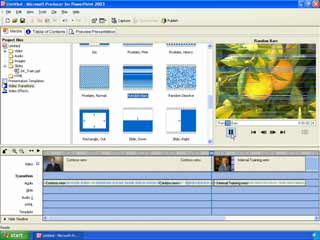
A scrollable list of Video Transitions, now appear in the center pane.

To preview any transition, simply click the thumbnail of the transition in the center pane, and press Play button in the video preview window to view the transition effect.


         Select a Video Transition from the available transitions
                              displayed in the center pane

Once you have selected which video transition you wish to use, click and drag the transition down into the timeline. Placing it between the two clips that you want to experience the transition.


           Drag your selected transition down onto the timeline

You can now preview the transition effect to your two video clips by clicking the Play button in the video preview pane on the right side of the screen.


           Click the Play button in the video preview pane to
                  view the transition effect on your timeline

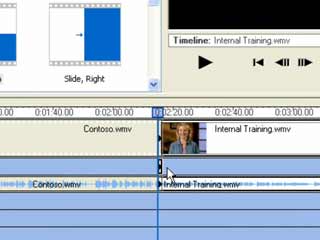
The transition timeline is also added to the timeline and can be viewed beneath the video timeline.

Here you can also adjust the duration and position of the transition by clicking and dragging the arrows that appear in the transition timeline.


                   Adjust the duration and position of the
                   video transition effect from the timeline

To delete and remove a transition from your timeline, click on the transition in the timeline.

Right click, and select Delete from the dialog box menu.


                       Delete a transition from the timeline

Click here to continue to page 3 of the tutorial and learn How to Add Video Effects.


Take advantage of this editions exclusive product discounts
Read this editions exclusive Article from Graham Neil
Follow this editions exclusive PowerPoint Tutorial
Ask the Experts a presentation question
Return to the Newsletter
Email this page to a Friend     About 123PPT.com     Advertise on 123PPT.com

All content within this page remains the property of 123PPT.com.
Terms of Use prohibit the reproduction, copying or other forms of republishing without written consent.

© 2004 123PPT.com. All rights reserved.